Forgot Login and Withdraw Password
Q : How can I do if I forgot my password?
A :If you forgot your password, we have two way for recover your account password by receiving OTP code that we will separate as "Before Login" and "After Login" by the following step :
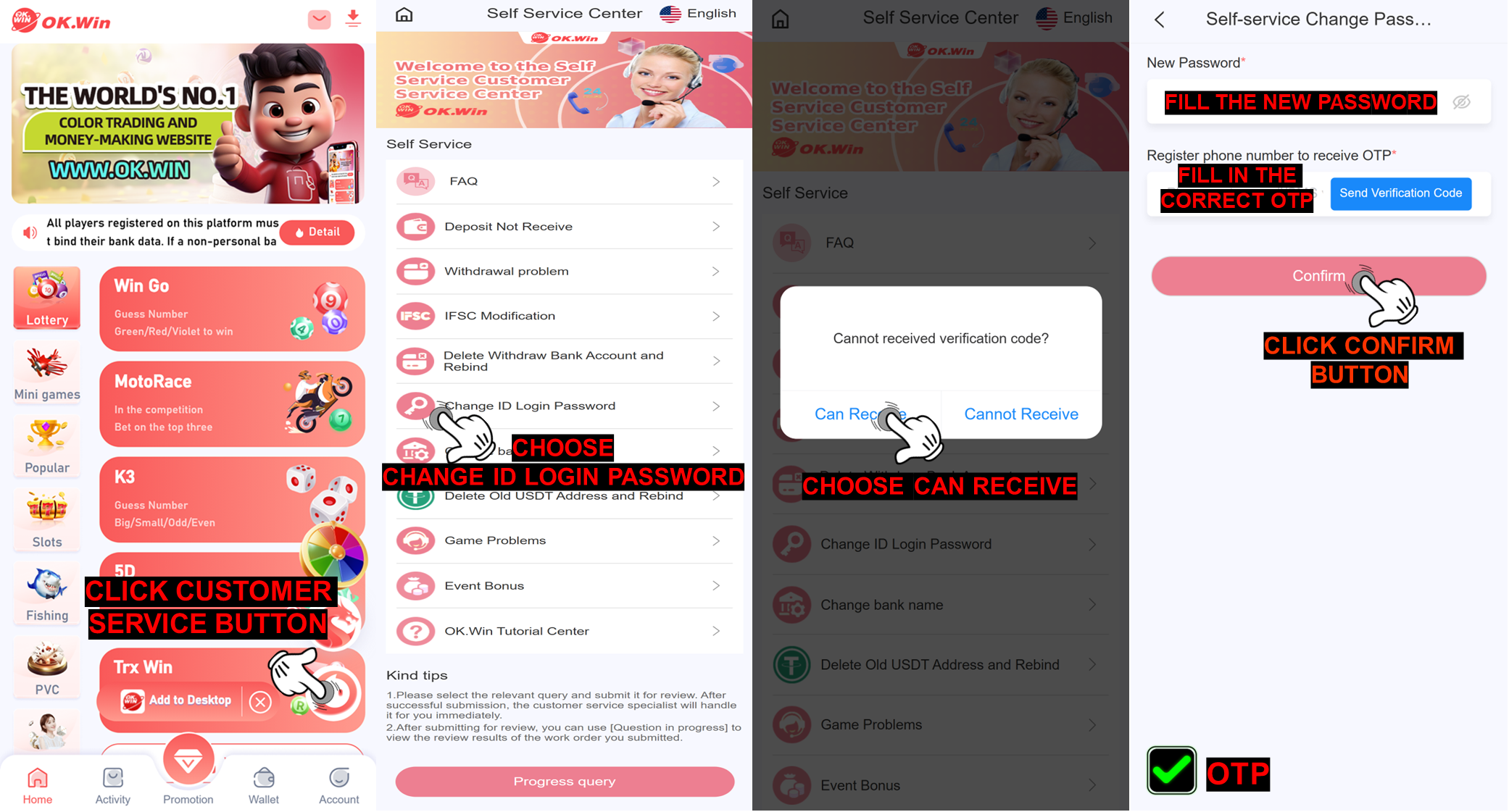
After LoginLogin to your Login Homepage
Click Customer Service button
Choose Change ID Login Password
Choose Can Receive
Fill the new password
Click Send and a verification code will be sent to your registered phone number
After receive the verification code, fill the verification code
Click the "Confirm"button
Go Login Page
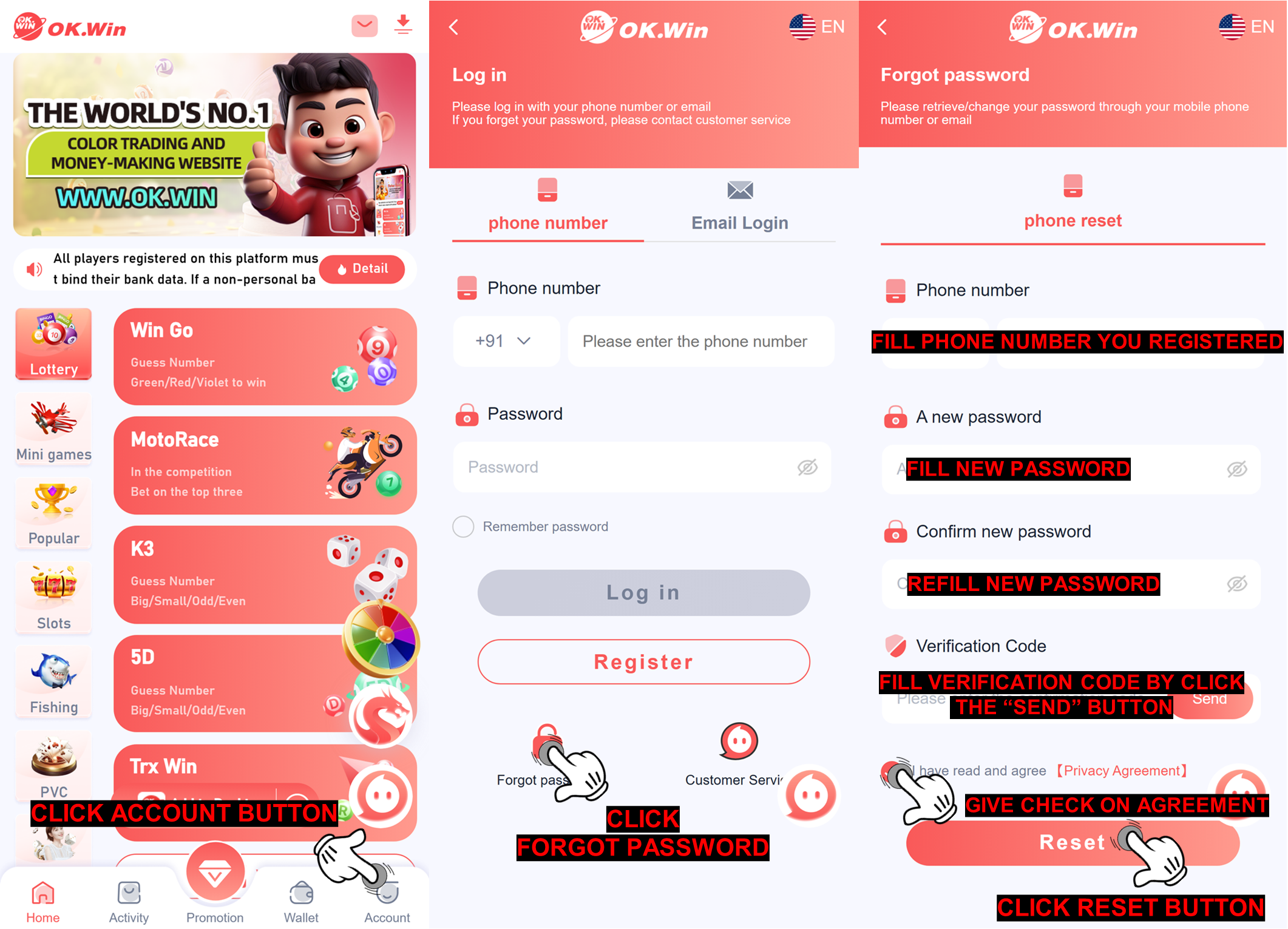
Click Forgot password
Enter a phone number equal to your registration number
Create your new password (min 8 characters with big-small characters)
Confirm the new password
Click Send button and the verification code will be sent to the phone number you registered
After receive the verification code, fill the verification code
Click I have read and agree [Privacy Agreement]
Click the "Reset" button
After Login
Before Login
Q : How I can create my password please inform me
A : To create a unique password, it must contain BIG and SMALL letters with numbers, and cannot use characters like period or underscore.
Example: QWERtyu1
We recommend to set a strong password to avoid stealing accounts and do not show your password to another.
If you cannot reset your password with the step above, you need to submit on the customer service self-service center and submit all requirement to "Change ID login password" and there will have two method of how to submit in this issue that we will divide as "Before Login" and "After Login" by the following step by step below :
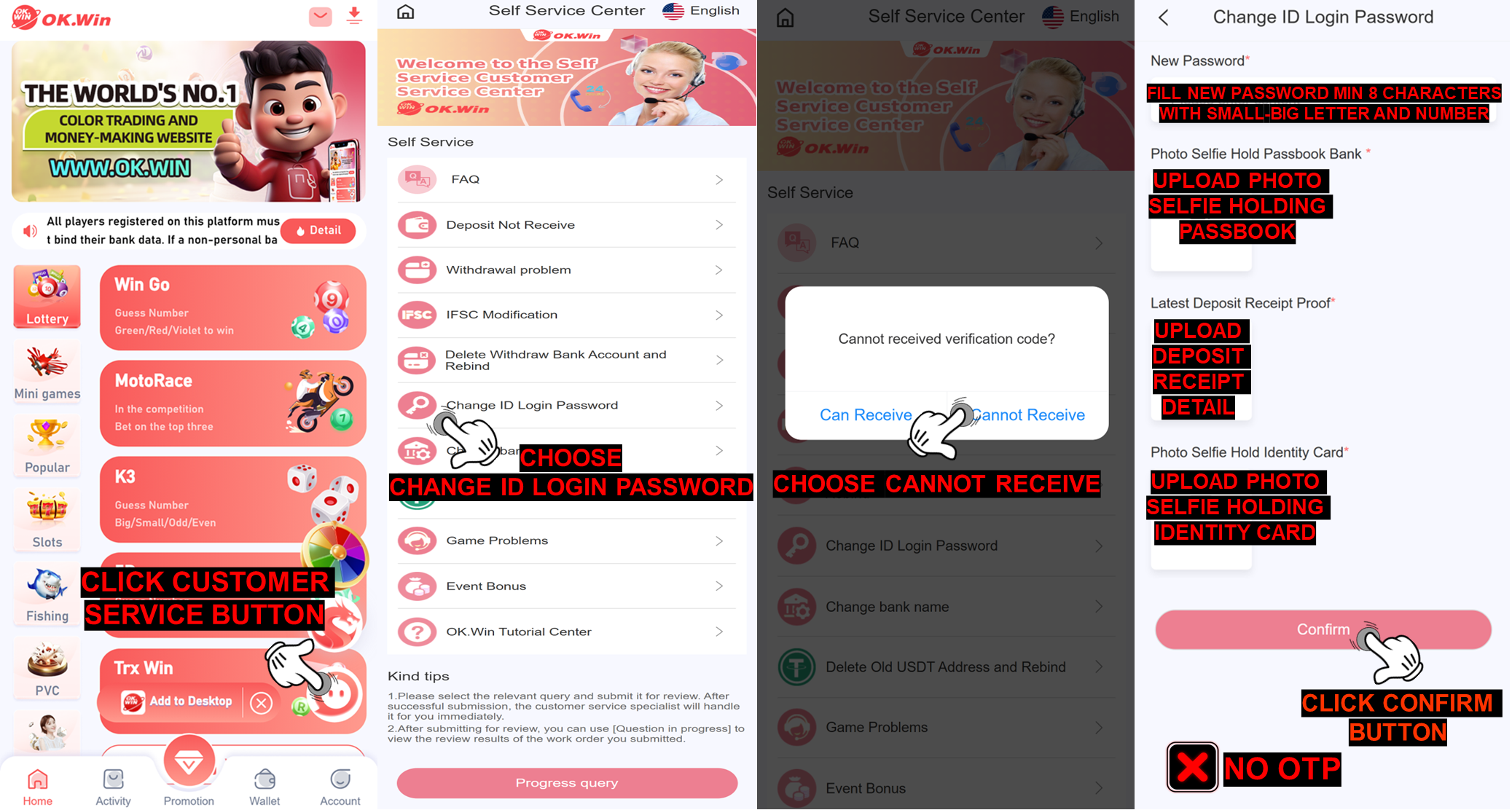
Login to your Login Homepage
Click Customer Service button
Choose Change ID Login Password
Choose Cannot Receive
Fill the new password that you want to use in the future
Upload the selfie picture while you are holding your bank passbook
Upload the latest deposit receipt that you made in your ID account
Upload the selfie picture while you are holding your identity card
Click the "Confirm" button
Visit our OK.WIN official link at: https://www.OK.WIN/
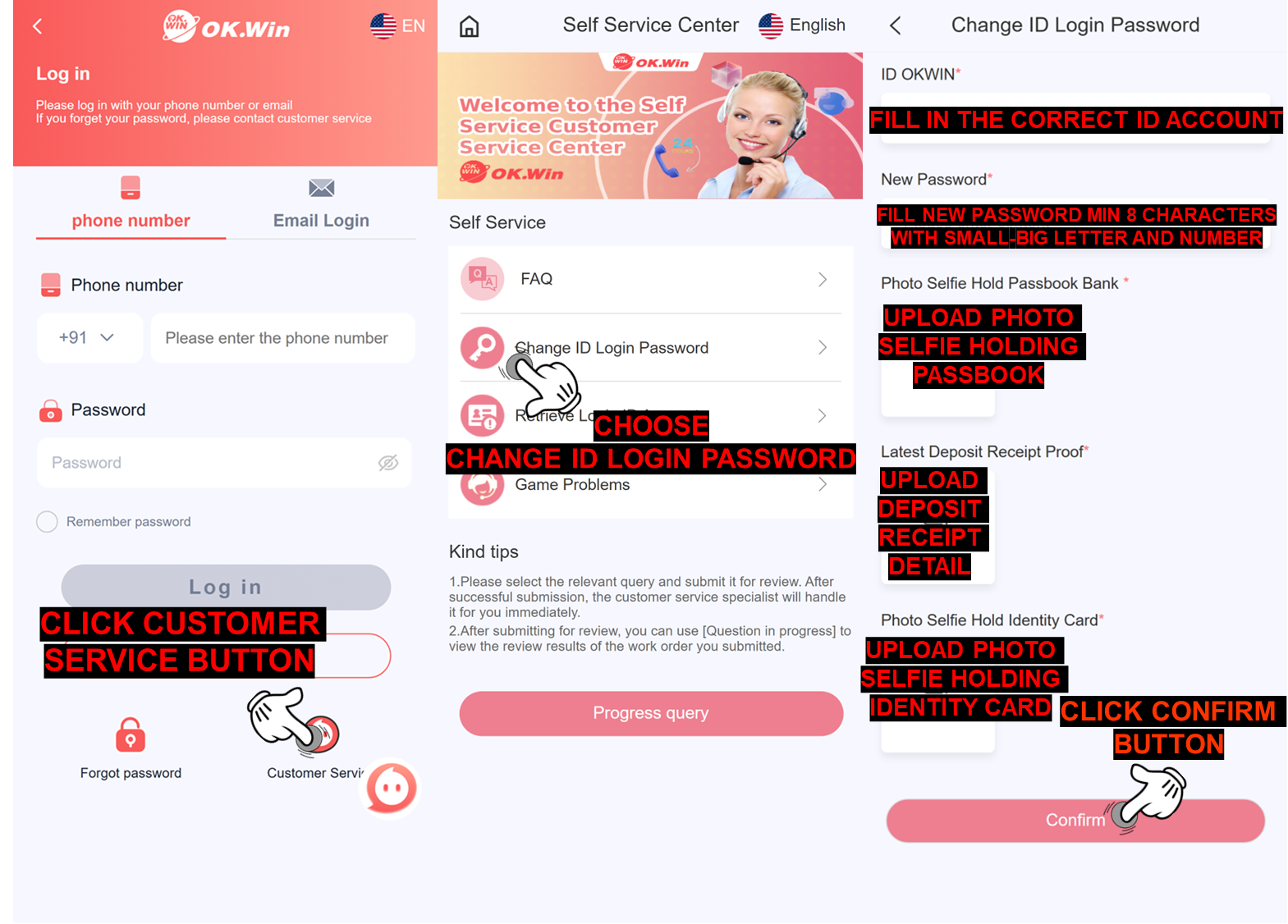
Click Customer Service button
Choose Change ID Login Password
Fill in the correct ID account
Fill the new password that you want to use in the future
Upload the selfie picture while you are holding your bank passbook
Upload the latest deposit receipt that you made in your ID account
Upload the selfie picture while you are holding your identity card
Click the "Confirm" button
Example: QWERtyu1
We recommend to set a strong password to avoid stealing accounts and do not show your password to another.
If you cannot reset your password with the step above, you need to submit on the customer service self-service center and submit all requirement to "Change ID login password" and there will have two method of how to submit in this issue that we will divide as "Before Login" and "After Login" by the following step by step below :
After Login
Before Login